Microsoft's granular delegated admin privileges, known as GDAP, let a partner configure granular and time-bound access to a customer's workloads, with the customer explicitly granting the least-privileged access the partner needs. The model replaced the older delegated access that gave partners broad rights across customer tenants, and it removes the need for a partner to hold the Global Administrator role in a client's environment. For an MSP adding offshore technicians, it is the most useful building block available for deciding exactly what each person can reach.
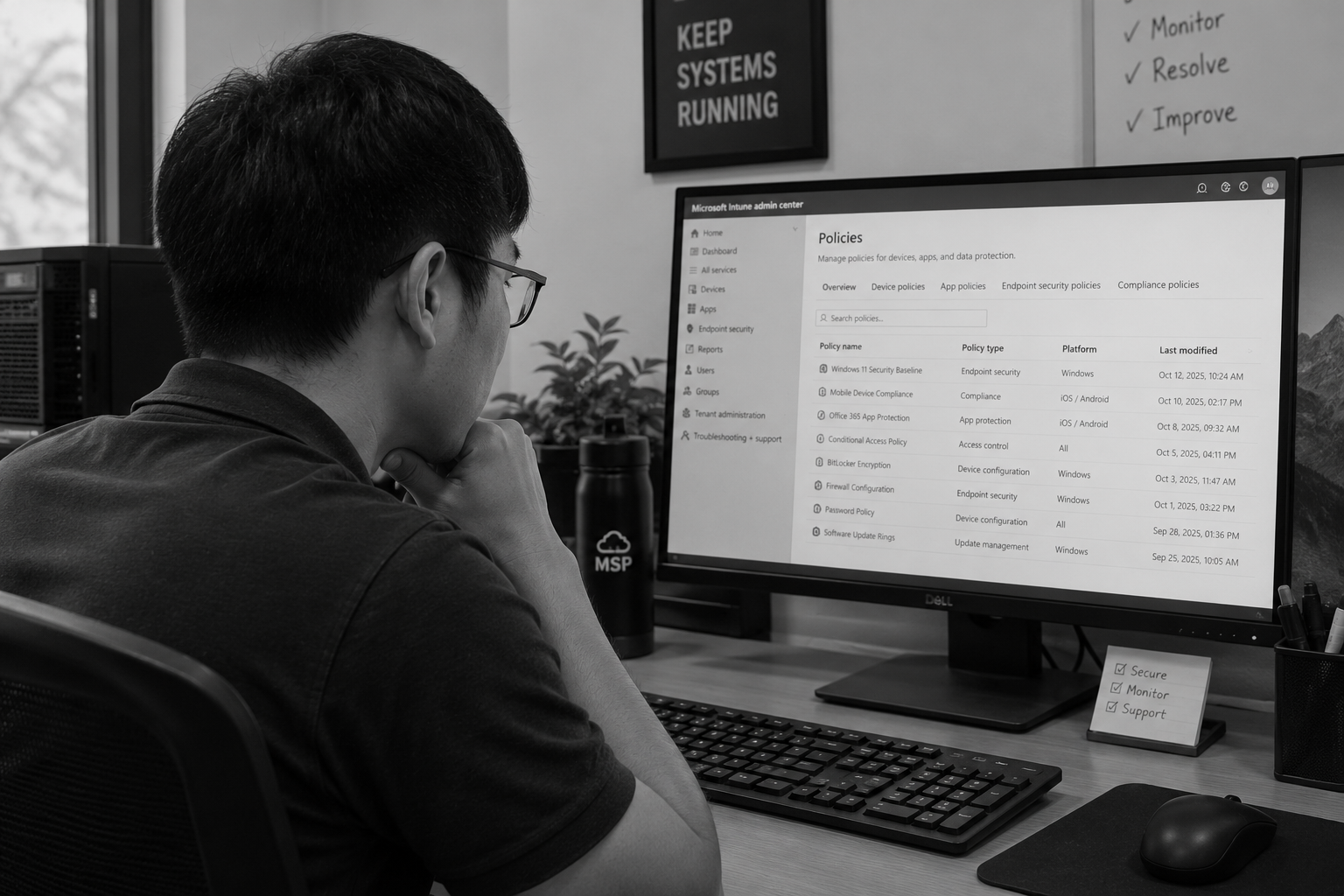
This post describes a three-layer setup for offshore technicians who work in Microsoft 365 client environments: the device they work from, how they sign in, and the roles they hold in each client tenant. It also gives an order for setting these up before the first shift and covers where the approach stops helping. The details are written for Microsoft environments because that is where most MSP helpdesk work happens, and the same principles apply to other platforms.
Three Layers, Each Doing a Different Job
Access control for a remote technician breaks down into three questions. First, what device is the person using, and can you verify it meets your standards. Second, how does the person prove who they are, and what extra checks apply when they do something sensitive. Third, once signed in, what are they allowed to do in each client's environment. Each question has a control in the Microsoft stack, and a gap in one layer is not made up for by strength in another. A technician with perfect MFA on an unmanaged laptop still exposes client data to whatever is on that laptop, and a well-managed laptop does nothing if the technician holds permanent Global Administrator rights in every client tenant.
| Layer | Control | What it limits |
|---|---|---|
| Device | Intune enrollment and a device compliance policy, enforced through Conditional Access | Sign-ins from unmanaged or unhealthy devices, and client data ending up on machines you do not control |
| Sign-in | Named accounts, multi-factor authentication, and just-in-time elevation for privileged tasks | Shared credentials, stolen passwords, and standing privileged access |
| Client tenant roles | GDAP relationships with least-privileged roles, separated by task and by team | The amount of damage one compromised or mistaken account can do across your clients |
Layer One: Managed, Compliant Devices
The device layer relies on two Microsoft features working together. Intune evaluates a device against a compliance policy, and Microsoft Entra Conditional Access uses the result to grant or block access. Microsoft's guidance on requiring device compliance with Conditional Access explains that compliance policies ensure user devices meet minimum configuration requirements, and that the Conditional Access policy will not work as intended without a compliance policy created in Intune first. It also advises making sure you have at least one compliant device before turning the policy on, which matters because the failure mode is locking people out, yourself included.
Microsoft's documentation notes that the compliant-device control does not block Intune enrollment, so a new device can still be enrolled while the policy is in force. That makes it practical to ship or provision a laptop, enroll it, let it reach a compliant state, and then give the technician access. Microsoft's templates also include a policy that requires a compliant or hybrid joined device specifically for administrators, which is a sensible place to start if you want to tighten the highest-risk accounts first.
The harder decision is who owns the device. If you or your provider supply managed laptops, you control the configuration, encryption, and the ability to wipe the device. If the technician uses a personal machine, you have much less to enforce, and for client-tenant work you should be cautious about allowing it. Whichever route you pick, decide it before the first day, because switching later means re-enrolling devices and re-checking what has already been stored on them. Konnect's guide to your first 90 days with an offshore team covers the broader onboarding sequence, and device setup fits in the first week of it.
Layer Two: Sign-In and Privileged Elevation
At a minimum, every technician has a named account, never a shared one, with multi-factor authentication required for every sign-in. Shared accounts make it impossible to tell who did what in a log, and they survive staff changes in a way that is hard to audit. Conditional Access can add conditions on top of MFA, such as requiring a compliant device, as described above, or blocking unknown or unsupported device platforms, which Microsoft also lists among its Conditional Access policy templates.
The more important idea is that most technicians do not need privileged access most of the time. Microsoft Entra Privileged Identity Management provides just-in-time elevation, so a technician holds a privileged role only for a limited period after activating it, and can be required to give a reason, complete MFA, or obtain approval first. Microsoft's partner documentation says partners can use Privileged Identity Management on a GDAP security group in the partner's own tenant to elevate the access of a few high-privilege users just in time, with automatic removal of access afterward. In practice this means an L1 technician works day to day with a helpdesk-level role and requests elevation only for the unusual task that needs it. Check Microsoft's current licensing requirements for these features before you plan the rollout, since they sit in different license tiers.
Layer Three: Scoped Roles in Each Client Tenant
GDAP is where the model gets specific. According to Microsoft's introduction to GDAP, it is a security feature that gives partners least-privileged access under the Zero Trust model, lets them configure granular and time-bound access to customers' workloads, and requires customers to explicitly grant that access. Partners can also partition access per customer, and the introduction describes the path from the older delegated model, which carried Global Administrator rights, to GDAP.
Microsoft's GDAP frequently asked questions recommend using a least-privileged role by task and workload, and say that where a known issue forces a workaround, the partner should work with the customer to request a time-bound Global Administrator role. That is a useful default for offshore staffing: treat Global Administrator as an exception that is requested, approved, and expires, not as a standing assignment for anyone.
A practical way to apply this is to define a small number of access tiers, map each to a security group in your own tenant, and attach different GDAP roles to each. The table below shows one way to arrange them. The tiers are a design suggestion, not a Microsoft prescription, and the exact roles depend on the services you manage.
| Tier | Typical tasks | Access model |
|---|---|---|
| L1 helpdesk | Password resets, user lookups, basic mailbox and license tasks | A helpdesk-level role through a dedicated security group, no standing privileged roles |
| L2 workload support | Exchange, Intune, Teams, or SharePoint administration for specific clients | Workload-specific roles in a separate group, limited to the clients each person supports |
| Privileged tasks | Changes that need highly privileged roles, such as tenant-wide security settings | Just-in-time elevation with approval, a stated reason, and automatic expiry, usually held by onshore senior staff |
Grouping access this way also helps at the end of an engagement. If a technician's access to client tenants comes through membership of a security group in your tenant, removing that membership ends the access in one step, instead of requiring you to hunt through client environments. Confirm how this works in your own setup before relying on it, and keep a record of which groups map to which GDAP relationships.
What to Set Up First
The order matters, because some of these controls can lock people out if applied in the wrong sequence. First, build the Intune compliance policy and confirm that at least one test device reaches a compliant state. Second, create the Conditional Access policy requiring a compliant device and run it in a mode that reports what it would have blocked before you enforce it, so you can see who would be affected. Third, create the security groups for each access tier and decide which clients each group may reach. Fourth, request or adjust the GDAP relationships for each client with the roles each tier needs, and ask clients to approve them.
Fifth, set up just-in-time elevation for the privileged tier, with approval and a time limit. Sixth, have the technician sign in from the managed device in the same way they will on their first day, from their actual location, and check that every system they need still works. Seventh, write down what you set up, who owns each piece, and how access gets removed, so the next onboarding is a repeat and not a reconstruction. Konnect's piece on data security in outsourcing covers the wider risk questions that sit around these technical controls.
Logging, Review, and Offboarding
Setting up access is the first half of the job. The second half is checking it keeps matching what you intended. Decide who reviews sign-in and administrative activity, how often, and what they look for. A useful starting set for offshore staff is sign-ins from unexpected countries or at unexpected times given the technician's schedule, sign-ins that fail the compliant-device requirement, elevation requests that nobody can explain, and any change to authentication methods on a technician's account. Technicians' schedules are predictable, so a sign-in from a new location or a device you did not provision stands out more than it would for an owner who travels.
Review who holds which roles on a fixed schedule, at least quarterly, and remove assignments that are no longer needed. Access tends to accumulate when someone covers for a colleague or supports a client temporarily, and without a review those assignments outlive the reason for them. Pair the review with a short list of questions: does each person still need each role, does each client still have the relationships you expect, and are any elevation approvals being granted automatically instead of considered.
Offboarding deserves a tested procedure. Write the steps in order, which usually means disabling the account and ending sessions, removing the person from the access groups, retiring or wiping the managed device, rotating any shared secrets the person could see, and checking that no scheduled tasks or integrations run under their credentials. Then run the procedure on a test account to find out how long it really takes and where it breaks. If you can remove a technician's access within an hour from the moment you decide to, you have a procedure. If it takes a day because nobody is sure where the access lives, that is the gap to close first.
Beyond Microsoft 365
Most MSPs also run a PSA, an RMM, a password manager, and remote access tools, and none of those inherit the controls above automatically. The same principles apply to each of them. Use named accounts and MFA, scope roles to what the job needs, log activity and review it, and remove access the same day someone leaves. Clients on Google Workspace or other platforms need the equivalent controls on their side, and the Microsoft-specific features in this post will not cover them. In the Konnect model, placed technicians work inside your own tools, so you configure and administer these controls. We are happy to walk through the baseline with you, and it is also reasonable to ask any provider what they require from you and what they provide.
Where This Does Not Fit
Technical controls reduce exposure, and they do not remove the need for judgment. A compliant device and a scoped role do not stop a person with legitimate access from misusing it, so activity logging, review, and clear confidentiality terms still matter. Client contracts or regulated frameworks may prohibit certain staff from accessing their systems regardless of how well you configure them, and you should check those terms first. The controls also carry costs: licensing for the relevant Intune and Entra features, time to set up and maintain, and some friction for technicians when a policy blocks a legitimate task. A poorly tested Conditional Access rule can lock out your whole team, which is why a staged rollout is worth the extra day. Finally, if you manage few clients and very little of your work depends on offshore staff, a simpler setup may be enough for now, as long as you write down what the standard is and who checks it.
📅 Book a 20-minute call: https://meet.brevo.com/konnectph
✉️ Email us: hello@konnect.ph
If you are about to add an offshore technician and want to check how access should be structured across your client tenants, bring a list of the tools and tenants the role would touch to the call, and we will go through the device, sign-in, and role setup with you.
About the Author
Vilbert Fermin is the founder of Konnect, a remote staffing company connecting North American and Australian businesses with top Filipino talent. With deep expertise in IT support and remote team management, Vilbert helps MSPs access skilled technical professionals without the overhead of full-time domestic IT staff. His mission is to showcase Filipino excellence while helping businesses stay protected, productive, and competitive through strategic remote staffing.