Authored by Vilbert Fermin
Introduction
If you're running a small business in the United States, Canada, or Australia and still have computers running Windows 10, this guide is for you.
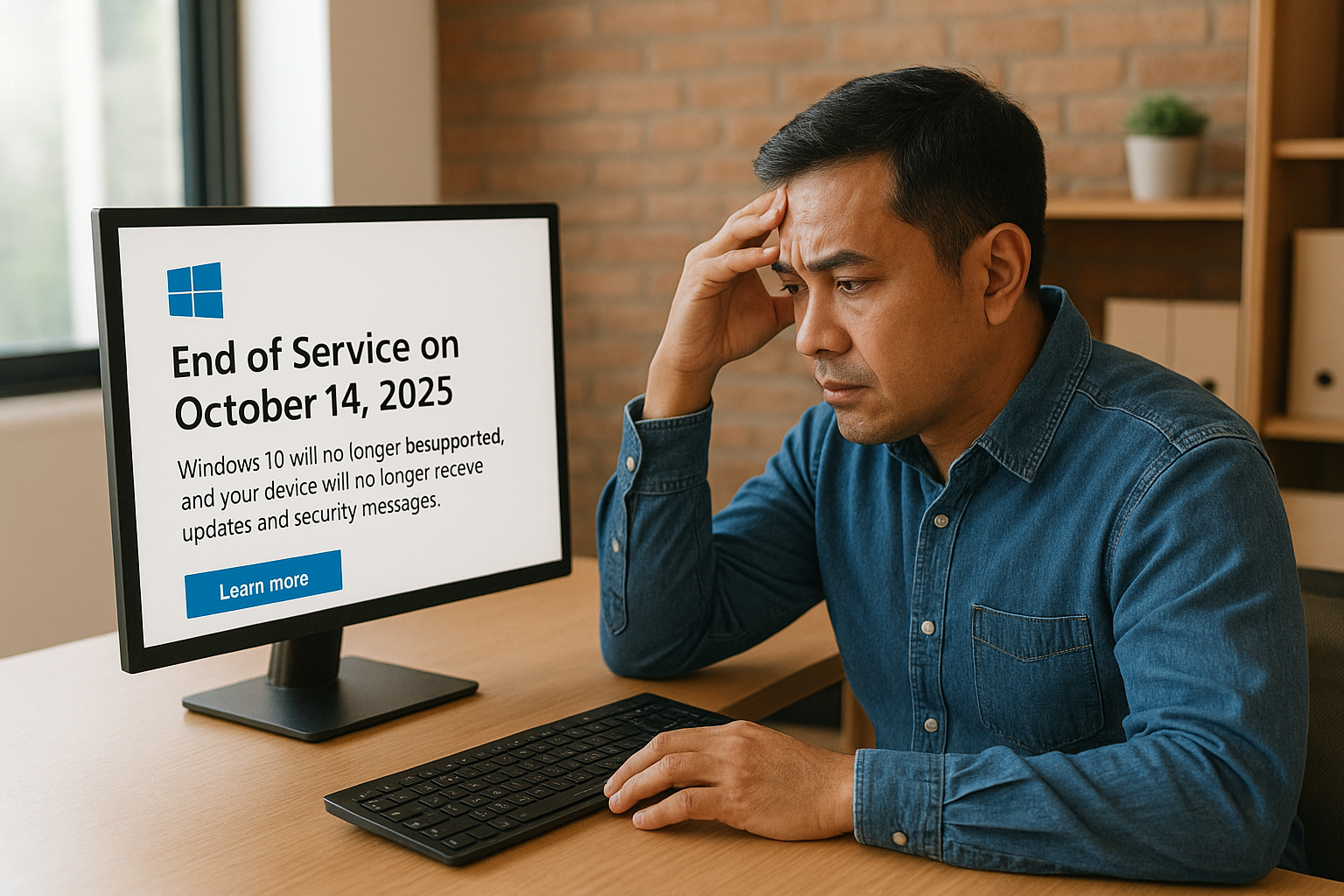
Microsoft officially ended support for Windows 10 on October 14, 2025. That means no more security updates, no more bug fixes, and no more technical support for the operating system that powers an estimated 400 million PCs worldwide.
For small businesses, this isn't just a technical inconvenience. It's a security risk, a compliance concern, and a decision that affects your daily operations.
The good news? You have options. The bad news? Doing nothing isn't one of them.
This guide breaks down exactly what Windows 10 end of life means for your business, what your options are, how much each path costs, and how to make the transition as smooth as possible.
What "End of Life" Actually Means
When Microsoft declares an operating system "end of life" (EOL), it doesn't mean your computer stops working. Your Windows 10 PC will still turn on, run your applications, and function normally on October 15, 2025, and beyond.
What changes is what happens behind the scenes.
What You Lose After October 14, 2025:
Security Updates: No patches for newly discovered vulnerabilities
Bug Fixes: No corrections for software glitches or errors
Technical Support: Microsoft support won't help with Windows 10 issues
Feature Updates: No new capabilities or improvements
What Still Works:
Your PC boots up and runs normally
Existing applications continue to function
Files, documents, and data remain accessible
Internet connectivity works (though less safely)
The critical issue is security. Every month, security researchers discover new vulnerabilities in operating systems. When Microsoft supports an OS, they release patches to fix these holes. Without support, those holes stay open permanently.
Why This Matters for Small Businesses
You might be thinking: "My computers work fine. Why should I care?"
Here's why this matters more for businesses than home users:
Security Vulnerabilities Compound Over Time
Cybercriminals specifically target end-of-life systems because they know vulnerabilities won't be patched. The infamous WannaCry ransomware attack in 2017 devastated organizations running unpatched Windows systems. Businesses that hadn't updated were hit hardest.
Running Windows 10 without updates is essentially leaving your front door unlocked and announcing it to potential burglars.
Compliance and Regulatory Risks
Many industries require businesses to maintain "supported" software:
Healthcare (HIPAA): Requires reasonable security safeguards
Financial Services (PCI-DSS): Mandates current, patched systems
Government Contracts: Often specify supported OS requirements
Cyber Insurance: Policies may exclude claims from unsupported systems
Using unsupported software could void your cyber insurance coverage, trigger compliance violations, or disqualify you from certain contracts.
Software Compatibility Issues
Over time, software vendors stop supporting older operating systems:
New versions of applications may not install
Web browsers may stop receiving updates
Hardware drivers for new peripherals may not be available
Cloud services may eventually block unsupported OS connections
The Domino Effect
A single compromised PC can be an entry point to your entire network. If an attacker gets into one unpatched Windows 10 machine, they can potentially access your email, servers, cloud applications, and customer data.
Your Four Options (And What Each Costs)
Let's break down your choices clearly:
Option 1: Upgrade to Windows 11 (Recommended)
If your PC meets the hardware requirements, upgrading to Windows 11 is free for licensed Windows 10 users.
Windows 11 Minimum Requirements:
1 GHz or faster processor with 2+ cores (64-bit)
4 GB RAM minimum (8 GB recommended)
64 GB storage minimum
TPM 2.0 (Trusted Platform Module)
UEFI firmware with Secure Boot capability
DirectX 12 compatible graphics
The TPM 2.0 Challenge:
The biggest barrier for most older PCs is TPM 2.0. This security chip became standard in computers manufactured after 2016-2017, but many older machines either lack it or have TPM 1.2 (which doesn't qualify).
How to Check Your PC:
Press Windows + R
Type "tpm.msc" and press Enter
Look for "TPM Manufacturer Information"
Check the "Specification Version" (needs to be 2.0)
Alternatively, download Microsoft's PC Health Check tool for a complete compatibility assessment.
Cost: Free (if hardware compatible)
Best For: PCs purchased after 2018 that meet requirements
Option 2: Purchase Extended Security Updates (ESU)
Microsoft offers a paid program to continue receiving critical security updates for Windows 10.
Consumer ESU (Home Users and Very Small Businesses):
Cost: Free with Microsoft account cloud sync, OR $30 USD one-time purchase
Duration: One year only (through October 13, 2026)
Includes: Critical and important security updates
Excludes: Bug fixes, new features, technical support
Business/Enterprise ESU:
| ESU Year | Coverage Period | USD (Per Device) | CAD (Per Device) | AUD (Per Device) |
|---|---|---|---|---|
| Year 1 | Nov 2025 - Oct 2026 | $61 | $86 | ~$95 |
| Year 2 | Nov 2026 - Oct 2027 | $122 | $172 | ~$190 |
| Year 3 | Nov 2027 - Oct 2028 | $244 | $345 | ~$380 |
| Total (3 Years) | Full Coverage | $427 | $603 | ~$665 |
Note: ESU pricing is cumulative. If you purchase Year 2, you must also pay for Year 1.
Important ESU Limitations:
Security patches only (no bug fixes or features)
No technical support included
Must be renewed annually
Prices double each year to encourage migration
Maximum 3 years for businesses, 1 year for consumers
Best For: Businesses with legacy applications that need more time to migrate
Option 3: Buy New Windows 11 PCs
If your current hardware doesn't support Windows 11, purchasing new computers may be the most practical solution.
Typical Business PC Costs:
| PC Type | Price Range (USD) | Best For |
|---|---|---|
| Budget Desktop | $400-$600 | Basic office tasks, email, web browsing |
| Mid-Range Desktop | $600-$1,000 | General business use, multitasking |
| Business Laptop | $700-$1,200 | Mobile workers, remote employees |
| High-Performance | $1,200-$2,000+ | Design, development, data processing |
When New Hardware Makes Sense:
PCs are more than 5-6 years old
Current machines are slow or unreliable
Hardware doesn't meet Windows 11 requirements
You're planning to expand your team anyway
Cost Comparison Over 3 Years:
For a single PC that doesn't meet Windows 11 requirements:
ESU for 3 years: ~$427 USD (and still stuck with aging hardware)
New mid-range PC: ~$700-800 USD (with modern hardware and full support)
Often, buying new makes more financial sense than paying for extended support on old hardware.
Option 4: Do Nothing (Not Recommended)
Some businesses will choose to keep running Windows 10 without ESU or upgrades.
Immediate Risks:
Vulnerability to new malware and ransomware
Potential cyber insurance claim denials
Compliance violations in regulated industries
Increasing software compatibility issues
How Long Can You "Get Away With It"?
Realistically, your PC won't explode on October 15. For the first few months, risks are relatively low. However:
Each month without patches increases exposure
Attackers actively target EOL systems
One successful attack can cost far more than upgrading
The Math:
Average cost of a ransomware attack on a small business: $150,000+ (including downtime, recovery, and reputation damage)
Cost of upgrading or replacing a Windows 10 PC: $400-$1,200
The risk-reward calculation is clear.
Step-by-Step Migration Plan
Here's a practical roadmap for transitioning away from Windows 10:
Step 1: Inventory Your Systems (Week 1)
Create a complete list of all computers in your organization:
Computer name/asset tag
Current operating system version
Hardware specifications (processor, RAM, storage)
TPM version (check via tpm.msc)
Critical applications installed
User assigned to each machine
Step 2: Assess Windows 11 Compatibility (Week 1-2)
For each PC, determine:
Does it meet Windows 11 requirements?
Is TPM 2.0 present and enabled?
Are all critical applications compatible with Windows 11?
Use Microsoft's PC Health Check tool on each machine, or run compatibility assessments through your IT management tools.
Step 3: Categorize Your Devices (Week 2)
Sort machines into categories:
Category A - Ready to Upgrade: PCs that meet all Windows 11 requirements. These can be upgraded immediately.
Category B - Needs Hardware Adjustment: PCs that might qualify with BIOS changes (enabling TPM, Secure Boot). Test these individually.
Category C - Requires Replacement: PCs that cannot run Windows 11. Budget for new hardware.
Category D - Legacy Dependency: PCs running critical applications that aren't Windows 11 compatible. May need ESU while you find alternatives.
Step 4: Plan Your Timeline (Week 2-3)
Create a realistic schedule:
Category A devices: Upgrade within 30 days
Category B devices: Test and upgrade within 60 days
Category C devices: Budget and purchase replacements within 90 days
Category D devices: Enroll in ESU immediately, plan application migration
Step 5: Back Up Everything (Ongoing)
Before any upgrade or migration:
Back up all user data to cloud storage or external drives
Document application settings and configurations
Export browser bookmarks and saved passwords
Save license keys for installed software
Step 6: Execute Upgrades (Week 3-8)
For Windows 11 upgrades:
Run Windows Update and install all available updates
Use Windows 11 Installation Assistant or Media Creation Tool
Choose "Keep personal files and apps" for in-place upgrade
Allow 1-2 hours for the upgrade process
Verify all applications work correctly after upgrade
Test printers, scanners, and other peripherals
Step 7: Deploy New Hardware (Week 4-10)
For replacement PCs:
Set up new PC with Windows 11
Install required applications
Transfer user data from old machine
Configure email, printers, and network connections
Provide brief training on Windows 11 changes
Securely wipe and dispose of old hardware
Step 8: Verify and Document (Final Week)
Confirm all machines are running supported OS
Update your IT asset inventory
Document any remaining Windows 10 devices (and their ESU status)
Schedule follow-up review in 6 months
Windows 11 vs. Windows 10: What's Different?
If you're upgrading, here's what your team can expect:
Visual Changes
Centered taskbar: Start menu and icons are centered by default (can be changed to left-aligned)
Rounded corners: Windows and menus have softer, rounded edges
New Start menu: Pinned apps and recommended files replace live tiles
Snap layouts: Hover over maximize button to see window arrangement options
Productivity Features
Snap Assist: Easily arrange multiple windows on screen
Virtual desktops: Create separate desktops for different tasks
Widgets: Quick access to news, weather, calendar on the left side
Teams integration: Built-in chat and video calling
Security Improvements
Hardware-based security: TPM 2.0 enables stronger encryption
Secure Boot: Prevents unauthorized software from loading at startup
Windows Hello: Enhanced biometric login options
Smart App Control: Blocks potentially malicious applications
What Stays the Same
File Explorer works similarly
Most keyboard shortcuts are identical
Settings app layout is familiar
Applications run the same way
Transition Tip: Most users adapt to Windows 11 within a few days. The learning curve is minimal for anyone comfortable with Windows 10.
Special Considerations by Region
United States
ESU Year 1 pricing: $61 per device (business)
Consumer ESU: $30 or free with Microsoft account sync
Most hardware retailers stock Windows 11 PCs
Consider Section 179 tax deduction for new equipment purchases
Canada
ESU Year 1 pricing: $86 CAD per device (business)
Prices in CAD are typically 30-40% higher than USD
Check provincial e-waste recycling programs for old hardware
Canadian businesses may qualify for technology investment credits
Australia
ESU Year 1 pricing: ~$95 AUD per device (business)
GST applies to software and hardware purchases
Australian Cyber Security Centre recommends migrating promptly
Consider Instant Asset Write-Off for eligible equipment purchases
What About Microsoft 365 Apps?
Good news for Microsoft 365 users: Your Office applications (Word, Excel, Outlook, Teams) will continue to receive security updates on Windows 10 through October 10, 2028.
However:
Feature updates for Microsoft 365 on Windows 10 end in 2026
Performance and reliability may degrade over time
Microsoft support may decline to troubleshoot issues on Windows 10
If your primary concern is keeping Office working, you have more runway. But this doesn't address the underlying OS security risks.
How Remote IT Support Can Help
Managing a Windows migration across multiple locations and employees can be overwhelming for small businesses without dedicated IT staff.
Remote IT support teams can:
Assess your environment: Inventory all devices and determine upgrade paths
Plan your migration: Create a timeline that minimizes disruption
Execute upgrades remotely: Perform Windows 11 upgrades without on-site visits
Troubleshoot issues: Resolve compatibility problems as they arise
Monitor security: Ensure all systems remain protected post-migration
Provide user support: Help employees adjust to Windows 11
For businesses in the US, Canada, and Australia, Philippines-based remote IT support offers a cost-effective solution. Skilled technicians can handle migrations during your off-hours, minimizing business disruption while keeping costs manageable.
Common Questions
Q: Will my PC stop working on October 14, 2025?
No. Your PC continues to function normally. You just won't receive security updates, which increases vulnerability over time.
Q: Can I upgrade to Windows 11 for free?
Yes, if your PC meets the hardware requirements. The upgrade is free for licensed Windows 10 users.
Q: What if my PC doesn't have TPM 2.0?
You have three options: (1) Check if TPM can be enabled in BIOS, (2) Purchase ESU to extend Windows 10 security updates, or (3) Buy a new PC that meets requirements.
Q: Is it safe to bypass Windows 11 requirements?
Technically possible, but not recommended for businesses. Unsupported configurations may have stability issues and won't receive certain updates.
Q: How long will ESU be available?
Consumer ESU runs through October 2026 (1 year). Business ESU is available for up to 3 years (through October 2028).
Q: What happens to my files during a Windows 11 upgrade?
In-place upgrades preserve your files, apps, and settings. However, always back up important data before any major system change.
Q: Should I wait to see if Microsoft extends Windows 10 support?
Unlikely. Microsoft has been clear that October 14, 2025, is final. Planning around hope isn't a sound IT strategy.
Action Items: What to Do This Week
If you've read this far, here's your immediate to-do list:
Count your Windows 10 PCs - Know how many devices need attention
Run PC Health Check - Determine which machines can upgrade to Windows 11
Identify critical applications - Check if your essential software is Windows 11 compatible
Calculate your budget - Estimate costs for upgrades vs. new hardware vs. ESU
Set a deadline - Commit to completing your migration by a specific date
Assign responsibility - Determine who (internal IT or external partner) will execute the plan
Conclusion: The Clock Is Ticking
Windows 10 served businesses well for a decade. But its time has passed.
For small businesses in the US, Canada, and Australia, the path forward is clear:
If your PCs meet requirements: Upgrade to Windows 11 (free)
If you need more time: Purchase ESU as a bridge (paid)
If hardware is old: Invest in new Windows 11 machines (smartest long-term)
If you do nothing: Accept increasing security risks (not recommended)
The cost of inaction far exceeds the cost of action. A single ransomware attack or data breach costs exponentially more than upgrading your operating system.
Don't wait until your systems are compromised. Start your migration plan today.
Need Help With Your Windows Migration?
Konnect.ph provides remote IT support for small businesses across the United States, Canada, and Australia. Our Philippines-based technicians can help you:
Assess your current Windows environment
Plan and execute Windows 11 migrations
Set up new hardware remotely
Provide ongoing IT support and monitoring
Get expert IT support without the enterprise price tag.
Schedule a Free IT Consultation →
About the Author
Vilbert Fermin is the founder of Konnect, a remote staffing company connecting North American and Australian businesses with top Filipino talent. With deep expertise in IT support and remote team management, Vilbert helps small businesses access skilled technical professionals without the overhead of full-time IT staff. His mission is to showcase Filipino excellence while helping businesses stay protected, productive, and competitive through strategic remote staffing.